Control VoiceMeeter while you gameKOL — Katam's Overlay
VoiceMeeter is great until you need to change something in the middle of a game. Then it's alt-tab, find the window, find the strip, and hope the game didn't notice. KOL brings VoiceMeeter's strips and buses onto a card on top of your game.
It talks to VoiceMeeter through the Remote API that comes with VoiceMeeter, and works with VoiceMeeter Standard, Banana and Potato.
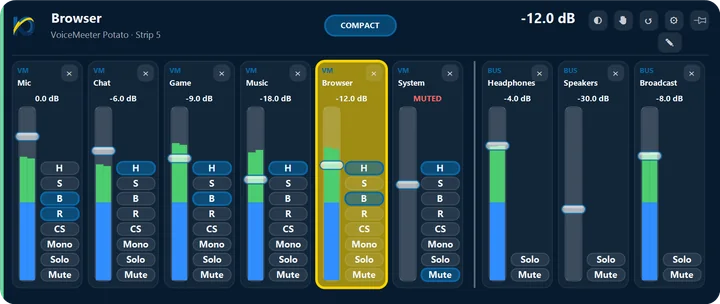
Strips and buses on one card
Every strip and bus gets a fader with live levels, named the way you named it in VoiceMeeter. You can give it another name in KOL, too.
- Gain and mute for strips and buses
- Send a strip to its A and B outputs in one click
- Mono for a strip, and KOL's own Solo
- Link channels so volume and mute move together
See what changed, even in VoiceMeeter
When something changes in VoiceMeeter itself, from a macro button for example, a card shows it. Changes that happen together show on one card.
- A shortcut you choose flips channels between outputs, like speakers and headset
- Mutes the mic after you step away, only if you want, and never unmutes it by itself
- Opens over your game with one shortcut and never takes its keyboard
- Works with a game controller
Start in three steps
- Get KOL from the Microsoft Store. It's a free beta for Windows 10 and 11, open to beta testers for now.
- Keep VoiceMeeter running. KOL connects to it and shows its strips and buses next to your Windows apps.
- Press Alt+~ in your game, then MIXER to see every strip and bus at once.
Good to know
- VoiceMeeter has to be running for KOL to control it. Without it, KOL controls Windows' own apps and devices.
- KOL doesn't install, bundle or replace any VB-Audio files. It changes only what you change on a card.
- The cards show over borderless and windowed games and over full-screen videos. Over a game in exclusive full screen we can't promise it, because Windows decides what shows there; most games have a borderless option.
Questions
Which versions of VoiceMeeter work?
VoiceMeeter Standard, Banana and Potato. KOL uses the Remote API that comes with VoiceMeeter, so there is nothing else to install.
Do I need VoiceMeeter to use KOL?
No. KOL works with Windows' own sound too. VoiceMeeter adds its strips, buses and A and B outputs to the same cards.
Can I switch between headset and speakers in a game?
Yes. Click a strip's A and B buttons on the card. Or set a Switch output shortcut in Settings, choose the outputs it flips between, and turn on Action shortcuts everywhere so it works while your game is in front.
Does KOL change my VoiceMeeter setup?
Only what you change on a card: a fader, a mute or an output. Everything else it only reads, to show it.

Never stop what you're doing.
One shortcut and KOL is there. One more and you're right back where you were.
Open to beta testers for now · available to everyone in the coming days
Beta testers: on the page that opens, click “Show in Microsoft Store app”, signed in with your invited Microsoft account.
On Windows the button opens the Microsoft Store app. Sign in there with your invited Microsoft account.
Not a beta tester yet? Write to us to join, or ask us to tell you when it's public.
Windows 10 (version 1809 or newer) or Windows 11 · Free beta